
Introduction
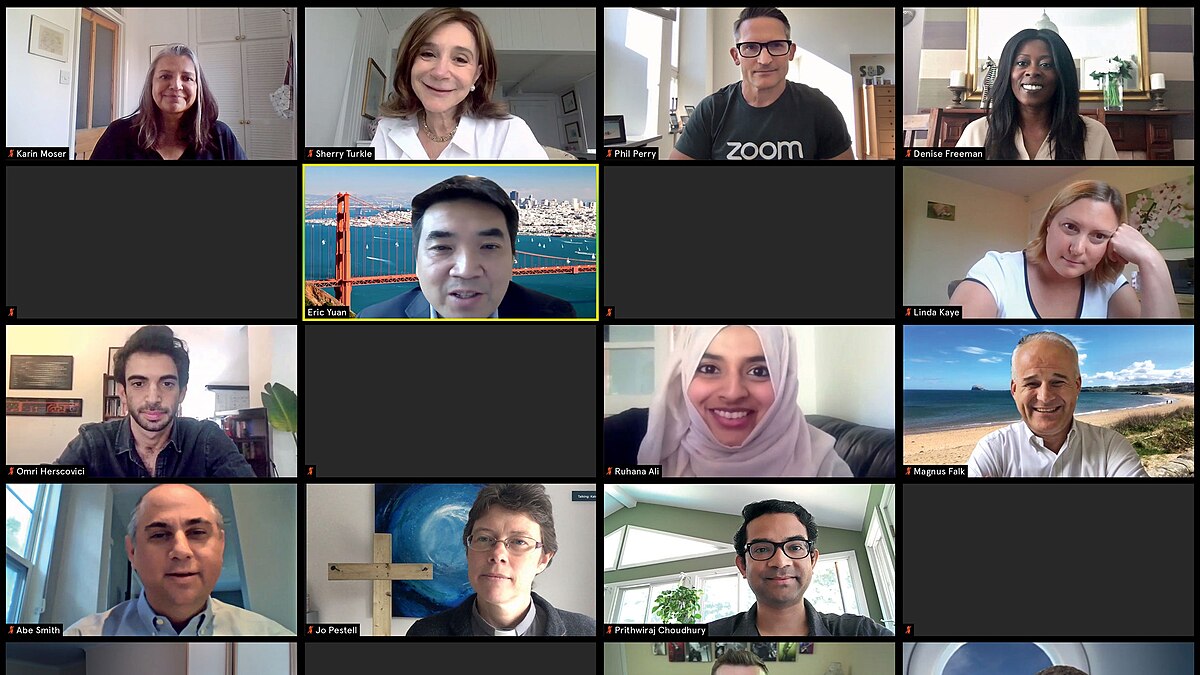
You have already discovered some of the most popular communicators. In this lesson, you will learn how to use one of them, which is Zoom. You will learn how to create a meeting and what options you can use to make your experience with Zoom better.
Anna’s friend lives in a different country, and that is why they cannot meet. They only write to and call each other, but have not seen each other in years. As Anna already knows different communication tools, she decided to use one of the most popular ones to meet her friend face-to-face.

You already know what options you have as a participant and administrator of a meeting. In the previous activity, you could notice this symbol:

After clicking it, you can see additional tools that allow you, among other things, to record the meeting or add subtitles (which can be helpful when someone has trouble hearing or the connection quality is not good enough).
You probably noticed that symbols suggest the actions, and the same happens here.
Try to guess what you can do thanks to the following symbols from the “more tools” option.
Summary

Well done! In this lesson, you learnt how to create Zoom meetings, administrate them, and record them for future use. We hope that thanks to this information, you will be able to keep in touch with your friends and family and also participate in online events, which will give you some fun or teach you something new 😀